If your showroom staff quote custom apparel jobs on a legacy terminal while your online B2B portal runs different pricing logic, you know the problem. Migrating to Shopify POS isn’t a hardware swap for promo distributors and custom decorators. It’s a full data and workflow reconciliation that turns your showroom and online backend into one unified commerce stack, and most migration guides never account for that complexity.
This Shopify POS migration guide is built for the businesses standard playbooks ignore: promo distributors, decorators, and hybrid retail-B2B brands running showrooms alongside production floors.
You might be interested in:
Shopify Checkout Migration Guide: All Steps, Cost & Tips
Shopify to Shopify Migration: A Practical Step-by-Step Guide
1. Why Do Standard Retail POS Systems Fail the Promotional Product Industry?
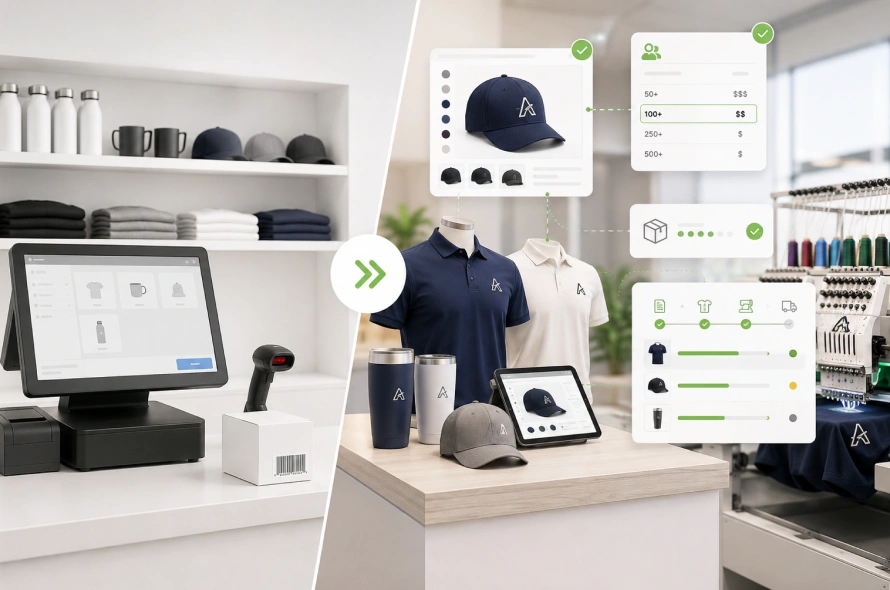
Generic POS migration content assumes a customer walks in, picks an item off a shelf, and pays. That model breaks when a client walks into your showroom for sample tracking, inspects a blank polo, requests an embroidery mockup, and needs a custom sales quote before placing a 300-unit order at a negotiated B2B rate instead of instant fulfillment.
Legacy systems like QuickBooks POS, Retail Pro, and LightSpeed were built around fixed retail SKUs. They have no concept of blank versus decorated inventory, no way to apply tiered B2B pricing at the register, and no mechanism to route a sale into a production queue.
Staff work around this with manual quotes and spreadsheets, exactly the fragmentation migrating to Shopify POS eliminates.
The businesses that benefit most from Shopify Retail POS run this hybrid model: showroom sampling, B2B wholesale accounts, and a decoration workflow behind the storefront. If that’s your operation, the question isn’t whether to move, it’s how to do it without losing the custom logic your business depends on.
2. How Do You Map Barcodes, Customer Accounts, and Custom Fields Before Migrating?
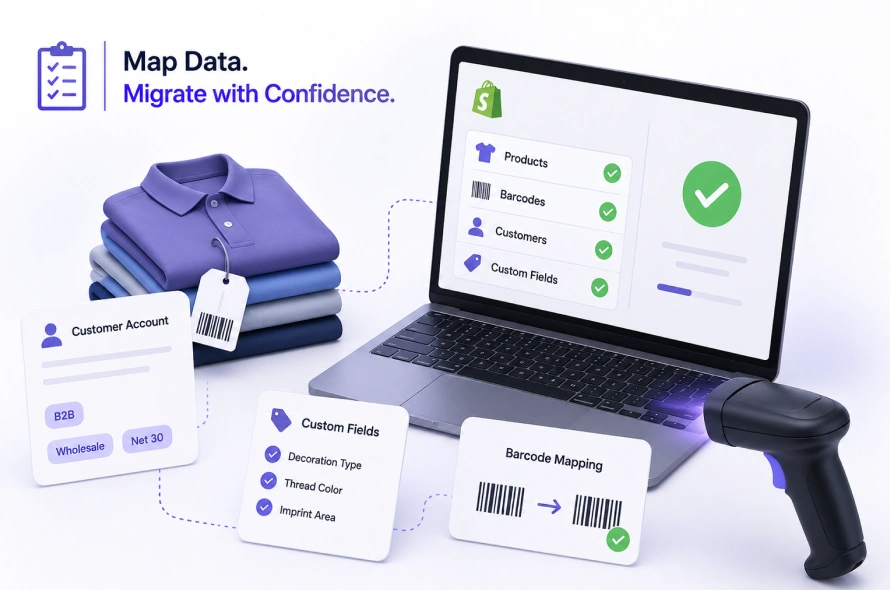
Before any hardware goes live, the data has to be right. This is where most Shopify POS Migration projects quietly fail.
Shopify’s native CSV importer works fine for a flat catalog of simple products. It isn’t built to preserve parent-child SKU relationships, decoration metafields, or the tags distinguishing a wholesale account from a retail walk-in. Push a complex promo catalog through it and you’ll likely see barcode mismatches, broken variant hierarchies, and lost B2B tags.
This is why migrating to Shopify POS the right way means using Matrixify instead. Matrixify gives spreadsheet-level control over how each field maps during import, so decoration metafields, barcode tables, and customer tags transfer without breaking the underlying structure. In practice:
- Parent SKUs (blank inventory) stay correctly linked to decorated child variants
- Customer profile mapping preserves B2B tags, pricing tiers, and purchase history
- Gift card balances and loyalty data import without silent truncation
- Barcode translation happens in a controlled, auditable batch rather than a blind bulk upload
Get this step wrong and every downstream system inherits corrupted data. Get it right, and your Shopify POS setup becomes the single source of truth your showroom and online portal both read from.
3. How Do You Manage Blank vs. Decorated Inventory with Shopify Stocky?
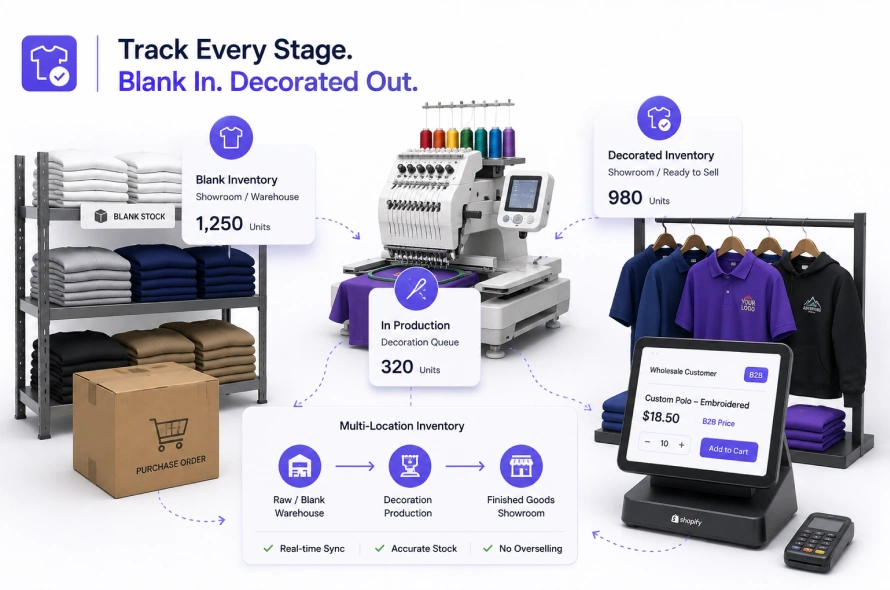
Promo and decorator businesses carry two inventory states for the same item: blank stock awaiting a print or embroidery job, and finished decorated goods ready to sell. Standard POS systems collapse this into one count, creating overselling and phantom stock errors.
Stocky, Shopify’s native inventory app, handles multi-location tracking well enough to separate these states when configured correctly. You can set up distinct locations for blank versus decorated stock, generate purchase orders for blank goods when raw stock runs low, and track multi-warehouse transfers as blanks move to your decoration queue and back to the sales floor as finished goods.
For heavier production volume, Stocky alone often isn’t enough. ERP-style integrations like Katana Cloud Inventory or SKULabs sync raw materials (inks, threads, blank apparel) with finished, customized SKUs, so production consumption reflects in real time against what sells in-store and online.
On pricing, showroom staff still need to apply negotiated B2B rates at the register instead of quoting retail. Apps like Bold Custom Pricing (Wholesale B2B) or POS – B2B Catalogs & Pricing let staff pull up a contract account directly on the POS terminal and apply correct tiered pricing without manual overrides.
4. What Hardware, Network, and UI Setup Does Your Showroom Need?
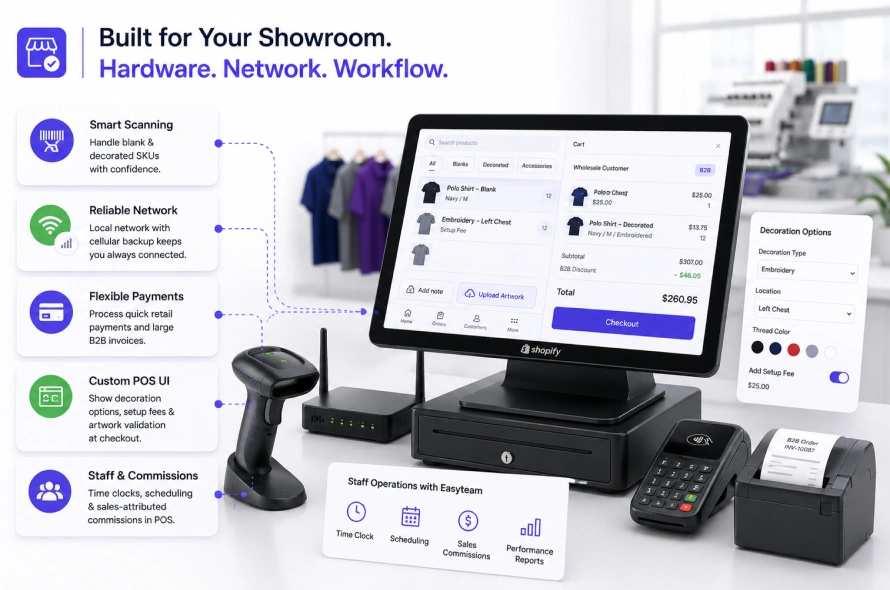
Getting the software right doesn’t matter if the showroom floor can’t transact reliably. A few details matter more here than typical retail:
- Barcode scanner configuration must account for your blank-versus-decorated SKU structure, since one physical item may carry two barcodes depending on production state.
- Network topology should include cellular backup alongside your local subnet, since losing connectivity mid-sale during a large B2B order is a bigger risk than one failed retail transaction.
- Payment gateway provisioning needs to support quick retail transactions and larger invoiced B2B orders.
- Shopify POS UI Extensions let you customize the register interface, surfacing decoration options, setup fee line items, and artwork upload validation prompts directly in the staff workflow.
Staff operations matter too. Easyteam for POS manages time clocks, scheduling, and sales-attributed commissions directly inside the register, useful when staff are commissioned on both retail and B2B orders.
5. How Do You Ensure Zero Downtime During a Shopify POS Cutover?
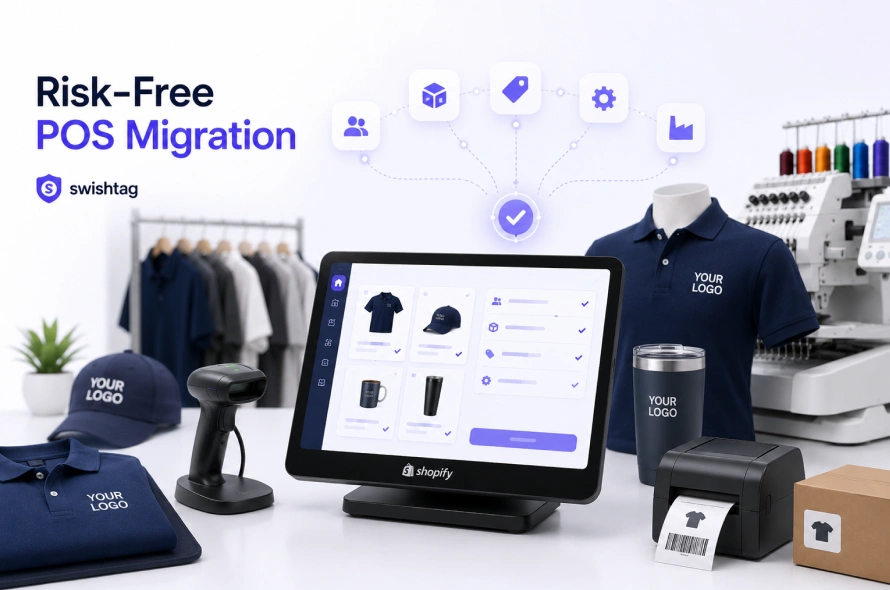
Before you flip the switch, run through this countdown:
- Test offline transaction capability. Confirm the POS can queue sales locally and sync once connectivity returns.
- Verify role-based staff access. Showroom staff, decoration leads, and managers should see only the tools and pricing tiers relevant to their role.
- Confirm inventory sync across locations. Blank and decorated stock counts in Stocky (and Katana or SKULabs, if in use) should match your physical count before go-live.
- Set up automated order routing. Tools like Mechanic or Shopify Flow should trigger the moment a POS sale finalizes with a decoration tag, routing blank inventory to the correct embroidery queue or contract decorator routing it needs.
- Run a parallel test week. Process real transactions through both systems simultaneously before cutting over fully.
- Confirm B2B pricing consistency. Pull up the same contract account on both the POS terminal and online portal.
Following this checklist separates a clean migrating to Shopify POS project from one causing a chaotic first week of showroom downtime.
6. Why Do Automated Migration Tools Fail Promo Stores, and How Does Swishtag Ensure a Risk-Free Switch?
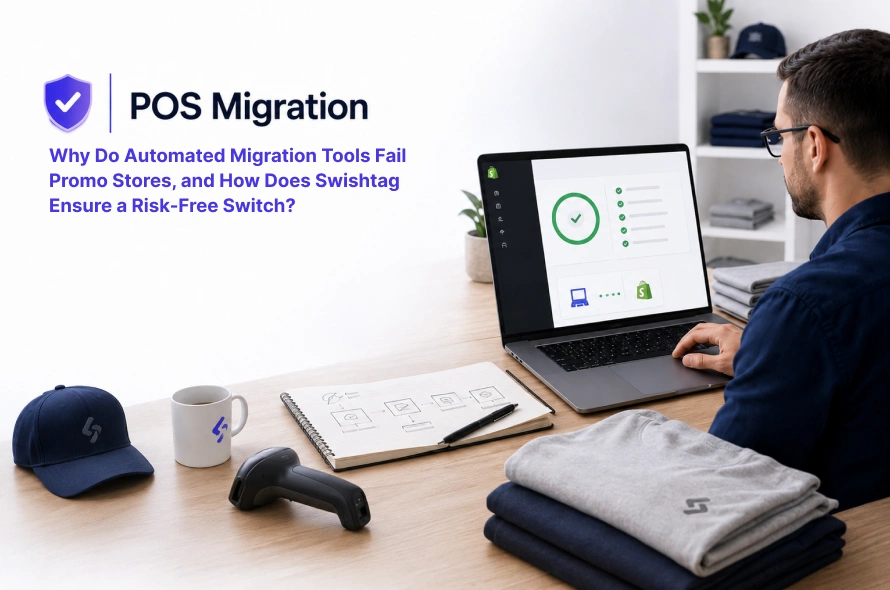
Generic migration tools and one-click connectors are built for flat retail catalogs. Run a promo or decorator business through one and you’ll typically see: SKU relationships flattened into single products, B2B pricing averaged into one retail price, customer tags stripped from profiles, and no automated routing because the tool has no concept of a decoration workflow.
This is precisely why Shopify migration partners with real promo industry experience matter more here than in almost any other vertical. Swishtag is a certified Shopify Partner that manually audits your hardware, cleans and maps every variant and metafield using Matrixify, configures Stocky (and, where needed, Katana or SKULabs) for accurate blank-versus-decorated tracking, sets up B2B pricing apps for register-level contract pricing, and builds Mechanic or Shopify Flow automations for production routing, all while guaranteeing zero showroom downtime.
If you’re evaluating how to migrate your retail store to Shopify without gambling your inventory accuracy, pricing logic, or decoration workflows on a generic connector, our team can walk your operation through the full Shopify POS migration process.
Talk to Swishtag’s Shopify POS Migration Experts →
Frequently Asked Questions
What is Shopify migration? Shopify migration moves your store’s products, customer data, order history, and workflows from another platform or POS system onto Shopify, including Shopify POS for physical locations.
Which kind of businesses use Shopify Retail POS? Hybrid businesses with both a physical storefront and online sales get the most value, especially promo distributors, apparel decorators, and B2B wholesale brands needing consistent pricing and inventory across channels.
What’s the difference between Shopify and Shopify POS? Shopify is the e-commerce platform powering your online store, while Shopify POS handles in-person transactions. Shopify POS Pro connects both so inventory, customer profiles, and pricing stay unified.
Is Shopify POS available in my country? Availability varies by country and payment processing requirements, so confirm directly with Shopify or a certified migration partner before planning a cutover date.
What’s the Bottom Line on Migrating to Shopify POS?
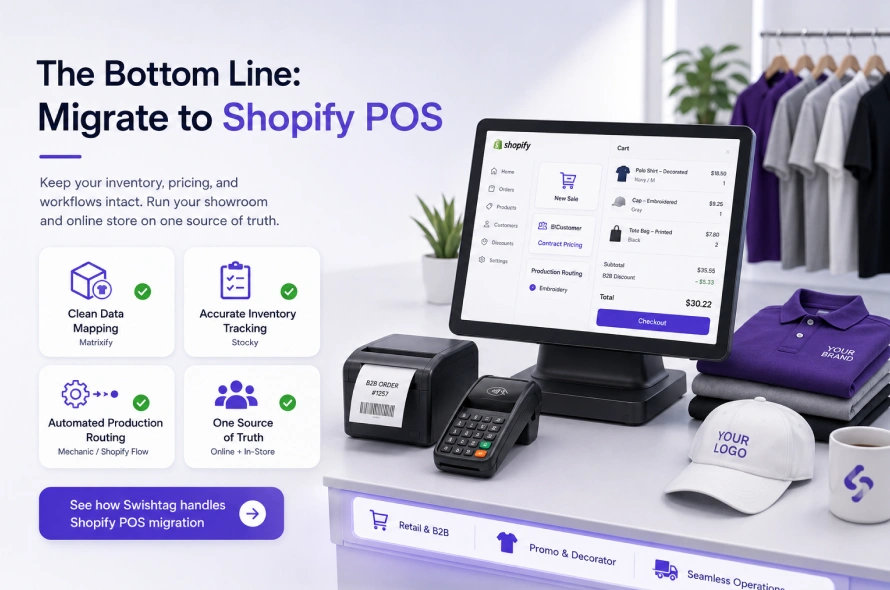
Migrating to Shopify POS is a real operational project for promo distributors and decorators, not a weekend software swap. Blank-versus-decorated inventory, B2B contract pricing at the register, and automated production routing all have to survive the move intact, and generic migration tools aren’t built to preserve that complexity.
Done right, with data mapping through Matrixify, accurate inventory tracking through Stocky, and automated routing through Mechanic or Shopify Flow, your showroom and online backend finally run on the same source of truth. That’s the difference between migrating to Shopify POS the wrong way, causing weeks of reconciliation headaches, and doing it right so it just works from day one.