
If you’re planning a Shopify to Shopify migration, the products are the easy part. What actually breaks a migration is losing the relationships between products, variants, images, customers, orders, apps, and URLs.
This guide walks through the real process of how to migrate to Shopify, not just the “export and import” version that ignores everything that goes wrong in between.
You be interested in:
How Much Does Shopify Migration Cost? (2026 Guide)
How Long Does a Complete Shopify B2B Migration Take?
Do You Actually Need a New Store?
Not every change requires a full migration. A theme update, a new app, or a messy design can usually be fixed inside your current store.
A Shopify to Shopify migration becomes necessary when the business itself is changing: a new country, currency, or legal entity, a separate wholesale or B2B setup, a brand split, a move to Shopify Plus, or a store built on such poor technical foundations that fixing it in place isn’t realistic.
One important distinction: if only the store owner is changing, you may just need an ownership transfer, not a migration. Shopify treats ownership changes and full store duplication as separate situations, so check which one you actually need before doing extra work.
What Transfers Natively, and What Doesn’t
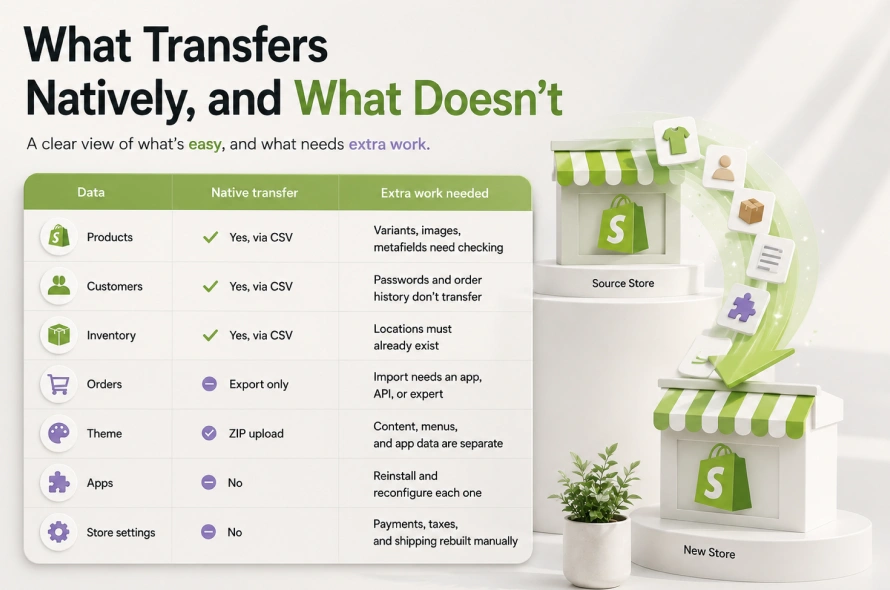
When migrating to Shopify, Shopify’s built-in CSV tools cover products, customers, and inventory reasonably well. Everything else needs manual rebuilding or a dedicated app.
| Data | Native transfer | Extra work needed |
| Products | Yes, via CSV | Variants, images, metafields need checking |
| Customers | Yes, via CSV | Passwords and order history don’t transfer |
| Inventory | Yes, via CSV | Locations must already exist |
| Orders | Export only | Import needs an app, API, or expert |
| Theme | ZIP upload | Content, menus, and app data are separate |
| Apps | No | Reinstall and reconfigure each one |
| Store settings | No | Payments, taxes, and shipping rebuilt manually |
This is the part most guides skip, and it’s exactly where migrations go wrong.
How to Migrate Shopify Store Data: The Hands-On Process
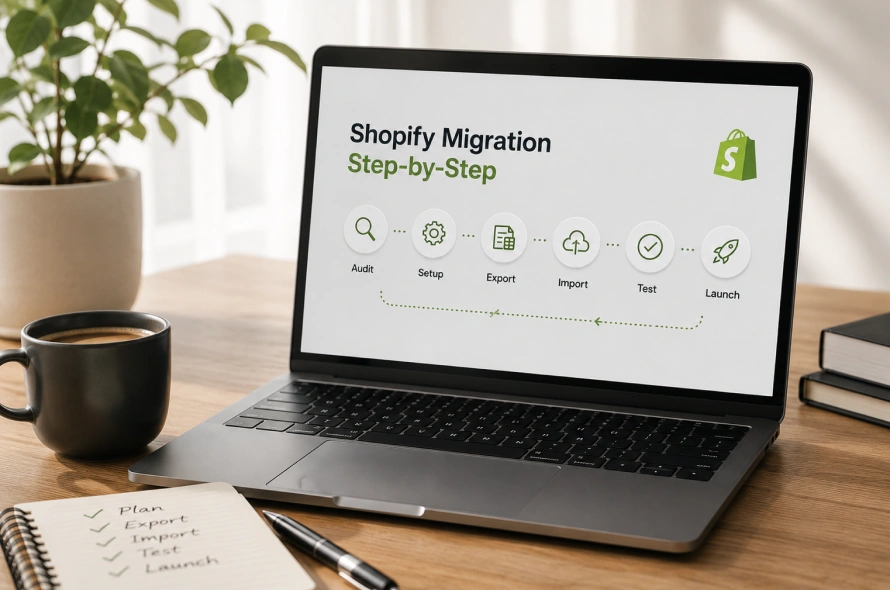
Keep your original Shopify store live and untouched until the new one is fully verified. Never connect your main domain to the new store early, and always test with a small batch before running a full import.
Here is a complete step by step guide how you can migrate your data to Shopify.
Step 1: Audit everything first.
Count products, variants, customers, orders, metafields, apps, and integrations in the old store. Build a spreadsheet with columns for data type, record count, migration method, and whether each item has been tested. Anything left off this list tends to get forgotten.
Step 2: Set up the new store.
Match the subscription plan where possible, since some theme and feature capabilities depend on it. Configure business details, locations, and currency in Settings, but don’t activate live payments or connect the domain yet.
Step 3: Export and clean the product CSV.
Go to Products > Export > All products, choose CSV, and download it. Open it in Google Sheets rather than Excel, since spreadsheet apps can silently change SKUs, dates, or special characters. Check handles, variant grouping, image URLs, and metafields before touching import.
Step 4: Import into the new store.
Go to Products > Import > Add file, upload the cleaned CSV, and review Shopify’s preview before confirming. After import, manually check one simple product, one multi-variant product, and one product with metafields against the original.
Step 5: Move customers carefully.
Export via Customers > Export, then import via Customers > Import. Passwords never transfer, and total spend or order history doesn’t carry over through this file, so customers may need to re-activate accounts.
Step 6: Handle orders honestly.
Shopify lets you export orders from Orders > Export, but there’s no native admin button to import them into another store. If order history matters for accounting, customer trust, or fulfillment continuity, this step needs an app, the Shopify API, or a migration expert.
Step 7: Move the theme, then rebuild everything around it.
Download the theme ZIP from Online Store > Themes, then upload it into the new store’s draft themes. The ZIP does not include products, pages, menus, blog posts, or app blocks, so expect a lot of manual reassembly.
Step 8: Rebuild settings, redirects, and tracking.
Recreate shipping zones, taxes, and checkout rules manually. For SEO, create redirects under Content > URL Redirects, mapping every changed URL from old to new. Reconnect Google Search Console, Merchant Center, and any ad pixels, since a store can look complete while quietly losing all its tracking data.
Step 9: Test before launch, then do a final sync.
Place real test orders across different products, discounts, and shipping regions. Right before going live, re-export the latest customers, inventory, and orders so nothing created during migration gets missed, then cut over the domain.
Manual CSV, Migration App, or Expert Help? Which Option is Better?
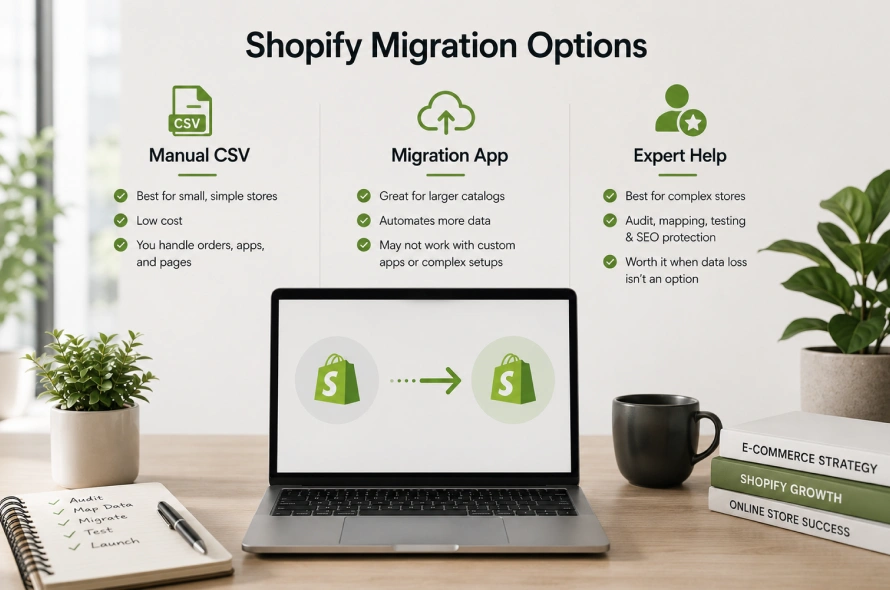
Manual CSV migration is good but works for small, simple stores with a standard theme, one inventory location, and no subscriptions or complex apps. It’s low cost but leaves orders, apps, and pages as your responsibility.
Migration apps like Matrixify, LitExtension, or Cart2Cart help with larger catalogs and can move more data types automatically, including basic order history. They’re a good fit for standard store structures, but they struggle with custom apps, product customizers, POD production systems, or Shopify Plus B2B setups.
A Shopify migration expert is worth it when you’re dealing with subscriptions, loyalty points, ERP or warehouse integrations, high organic traffic, or a business that simply can’t absorb data loss or extended downtime. The value isn’t pressing the import button, it’s the audit, data mapping, testing, and SEO protection around it.
How Much Does Shopify to Shopify Migration Cost?
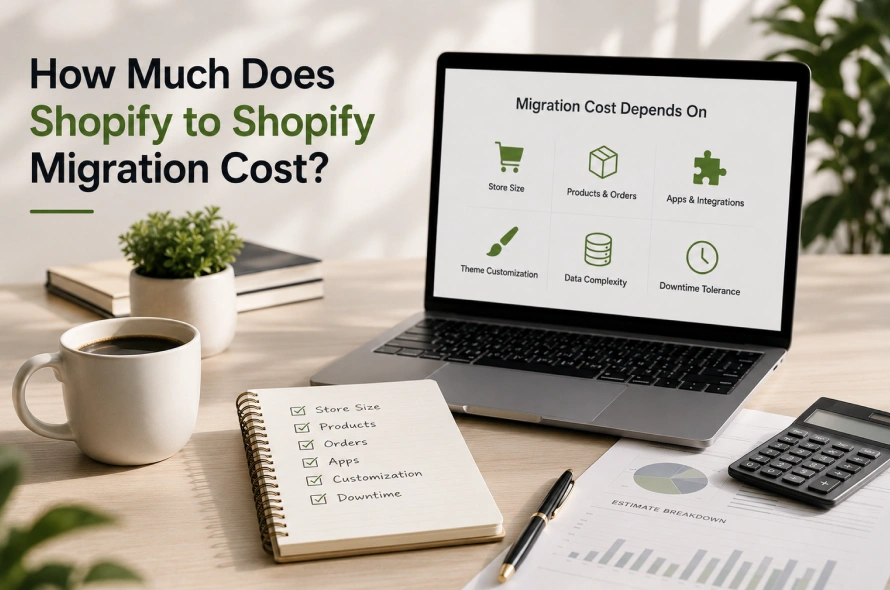
There’s no single fixed price. Cost and timeline depend on product and order volume, number of apps, theme customization, whether order history and subscriptions need to move, and how much downtime your business can tolerate.
A small standard store is a very different job from a customized, high-traffic one. To get a realistic estimate for your specific setup, explore our Shopify migration services for a store-specific cost and timeline breakdown.
Frequently Asked Questions
Can I copy my entire Shopify store to another one?
Products, customers, inventory, and theme files can be moved, but there’s no single native button that duplicates orders, apps, settings, and integrations at once.
Will migrating hurt my SEO?
Rankings can be affected if URLs, metadata, or internal links change without proper redirects. Keeping the same domain and URL handles, and mapping every redirect, reduces the risk significantly.
Should I use an app or hire an expert?
Apps work well for standard stores you can test and correct yourself. Custom themes, subscriptions, POD setups, or business-critical SEO traffic call for expert help.
Plan Before You Move Any Data
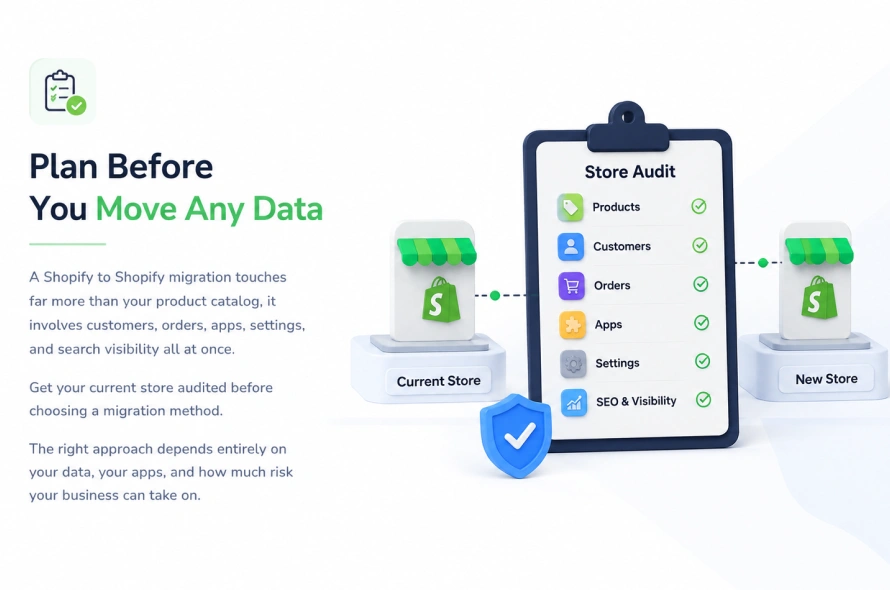
A Shopify to Shopify migration touches far more than your product catalog, it involves customers, orders, apps, settings, and search visibility all at once. Get your current store audited before choosing a migration method. The right approach depends entirely on your data, your apps, and how much risk your business can take on.