
According to promotional product industry data, more than 60% of open-source store owners experience automated fulfillment errors due to plugin conflicts right when their business starts scaling.
If you are running a print-on-demand (POD) business on WordPress, you already know how frustrating it is when a plugin update breaks your server connection. You are probably looking at a POD store migration to Shopify to gain stability, better speed, and a system that does not require constant maintenance.
But here is the catch: moving a print shop is not like moving a standard boutique. If you just copy and paste your products, the hidden links connecting your store to your print factory will completely break down.
This article is written like a real operational logbook. It will guide you step-by-step on how to migrate woocommerce print shop to Shopify, safely navigate a complete woocommerce to shopify migration steps, and understand when to use automation tools versus hiring expert help.
You might be interested in:
Etsy to Shopify Migration – Move Your Print Shop in 12 Steps
How to Migrate a Custom-Built Print Store to Shopify Plus
Why Leave WooCommerce?
WooCommerce is an amazing free tool when you are starting out. However, as your print shop grows, managing a wordpress to shopify migration becomes a necessity rather than a choice.
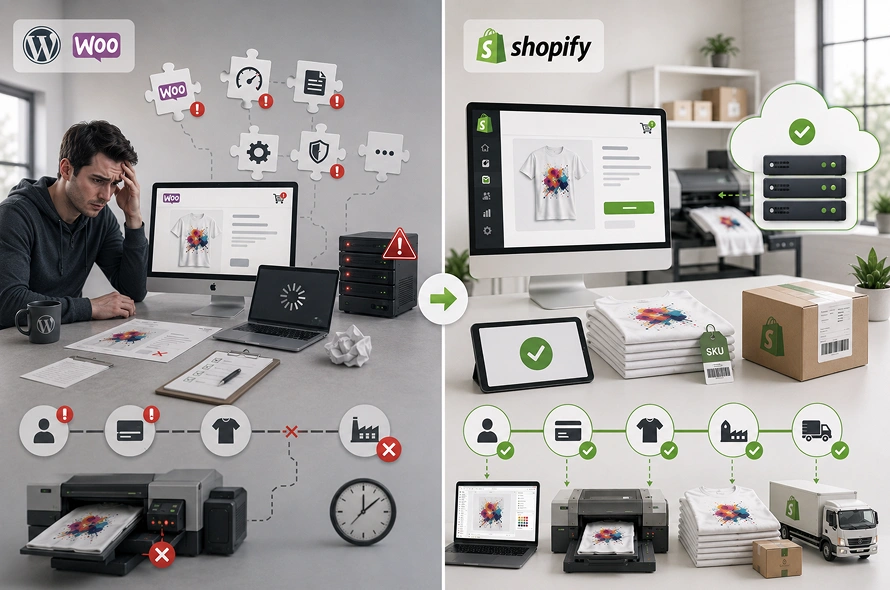
Why? Because, On WordPress, your automated fulfillment relies on a chain of independent plugins. If your hosting server slows down for even a minute, the connection to your print provider can time out.
This means a customer orders a custom t-shirt, but your factory never receives the printing file, causing manual processing delays and unhappy customers.
So, when you create a print on demand Shopify store, you are moving your business onto a fully hosted, enterprise-grade cloud infrastructure.
Shopify keeps your backend connections stable 100% of the time. Orders flow instantly from your checkout page directly to your production partners without any background plugin maintenance or server crashes.
When to Make the Move?
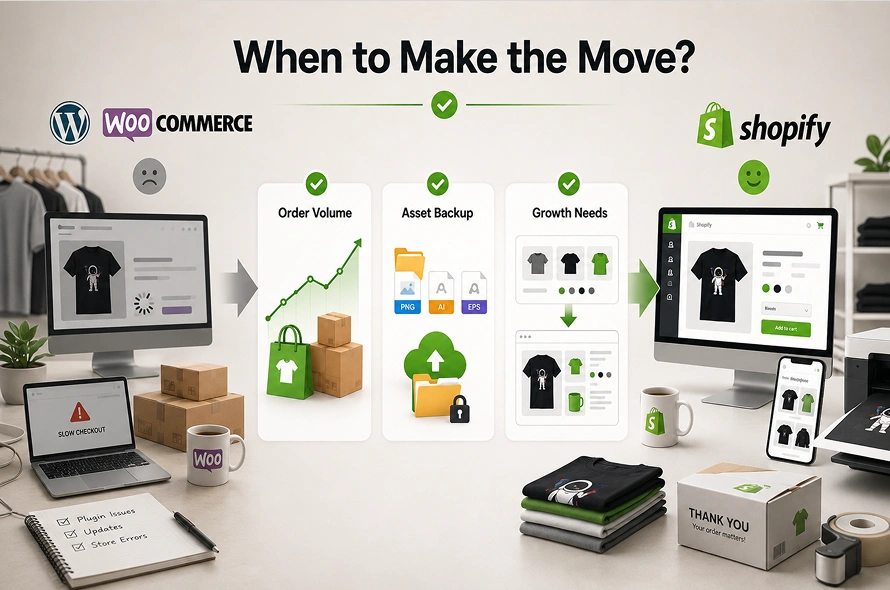
Do not rush into a store migration without auditing your current setup first. Use these three checkpoints to see if your POD business is truly ready for the transition:
- Order Volume Check: Are you processing more than 50 to 100 orders per month? If yes, the manual time spent fixing broken WordPress plugins is costing you more than a Shopify monthly subscription.
- Asset Inventory Check: Do you have all your original, high-resolution print designs (PNG or Vector files) saved securely in an external cloud storage drive?
- The Structural Need: Is your business model shifting from basic catalog items to complex custom prints? If you find yourself needing advanced enterprise solutions or custom framework upgrades, reading about how a large organization handles a custom code to shopify plus transition can help you plan your long-term infrastructure layout.
The “Tool Trap” vs. Custom Migration Services
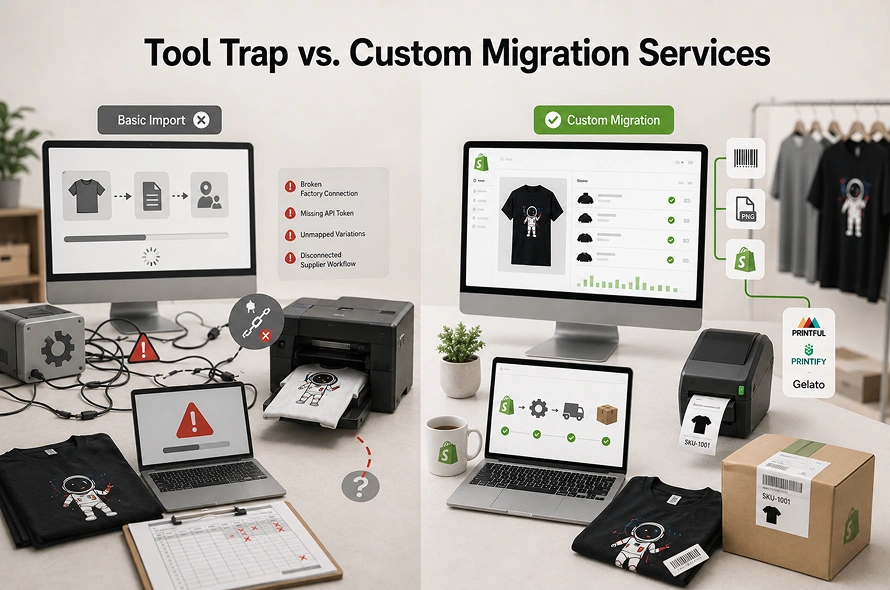
When store owners decide to transition, they usually look for automated software or plugins like Matrixify or Cart2Cart to import products from WooCommerce straight into Shopify. These migration apps are great for moving text, products, customer addresses, and basic product titles.
However, for a print-on-demand shop, these tools are a trap.
These Apps cannot read your API tokens or your custom production settings. It will move your product pictures over, but it completely cuts your connection to the factory.
If you look up how to connect a shopify store to printful or a shopify store to printify, you will learn that every single variation must be mapped by hand or via custom operational workflows.
This is exactly why generic shopify migration apps fail, and why investing in specialized shopify migration services is highly recommended.
A custom service does not just move data; it rebuilds your automated pipelines, maps your unique SKUs, configures your multi-supplier shipping rates, and ensures your store does not experience a single hour of operational downtime.
5 Steps – Migrate WooCommerce Print Shop to Shopify
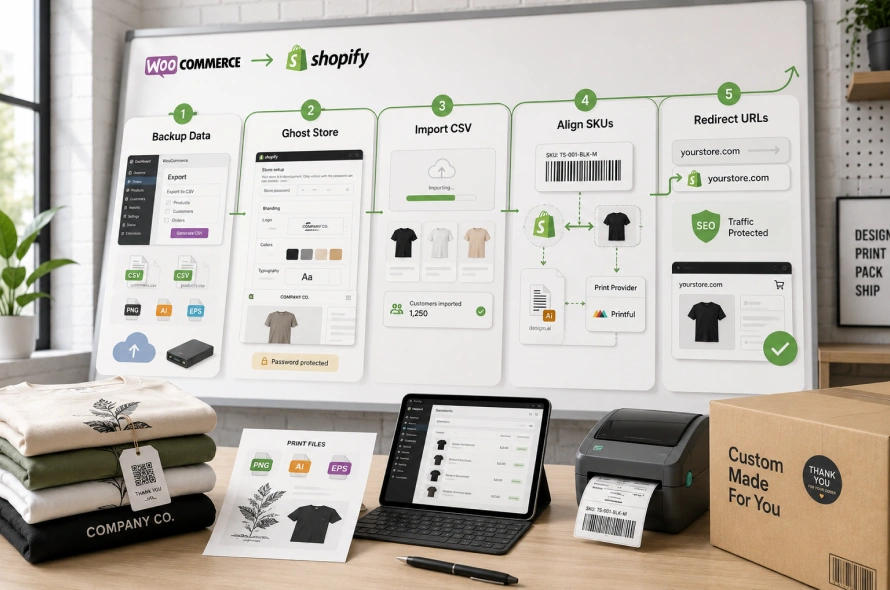
Follow these five points to safely execute your Shopify migration without losing your sanity or your sales momentum.
Step 01: The Frozen Snapshot & Data Export
Before touching anything on Shopify, you must take a complete data backup of your current WordPress site. Go to your WooCommerce dashboard, navigate to your product and customer settings, and export clean CSV files.
Important Note: Do not download your artwork designs from your live web pages. WordPress automatically compresses images to make your site load faster. So,always use your original, uncompressed print files saved on your local hard drive or cloud storage to avoid low-quality, blurry prints on your new storefront.
Step 02: Building the Ghost Shopify Store
Sign up for your new Shopify account. At this stage, do not move your custom website domain yet.
Keep your old WooCommerce site completely live so active buyers can still purchase your products.
You will build a store from scratch, customize it according to your branding, and configure your new Shopify site entirely in the background using a temporary project URL e.g www.xyz.myshopify.com.
Step 03: The Controlled Data Injection
Open your Shopify dashboard and upload your clean customer and product CSV files.
If your catalog contains complex apparel pieces with dozens of colors and sizes, remember that Shopify has a native limit of 100 variants per listing.
If you are moving away from a simple, limited web builder instead of WordPress, checking out our comparison on squarespace vs shopify for print shops can show you how different platforms structure their variant databases.
If your variations exceed 100 on WooCommerce, you must split your products by color before importing them, or install a specialized third-party product options app.
Step 04: Re-linking the Production Line (SKU Alignment)
Once your products appear on your Shopify dashboard, install your official POD supplier app. Go into the app’s control center and locate the product mapping interface.
Shopify Dashboard Product —> Matches Exact SKU Code —> Supplier App Design File
You must match the exact SKU codes from your imported products to the corresponding print files inside your supplier’s library. If your SKUs do not match perfectly, your factory will not know what graphic to print when a new order arrives.
You Might be interested in:
How to Sync SAGE, ASI, and CommonSKU Feeds with Shopify’s Product Matrix
Step 05: The Traffic Switch & SEO Protection
Now it is time to make your store live. Change your custom domain’s DNS settings to point away from your old WordPress host and direct it toward Shopify.
To protect your Google search rankings, immediately navigate to Online Store > Navigation > URL Redirects inside Shopify. Create permanent 301 redirects for all your old WordPress product links.
This ensures that any old user clicking a link from Google or social media is sent directly to your new Shopify page instead of hitting a broken “404 Error” page.
Conclusion: Turning on the Production Engine
Completing a successful shopify migration is the ultimate way to secure the operational future of your digital brand. By systematically freezing your data, utilizing precise SKU mapping, and configuring permanent 301 redirects, you protect your daily revenue and your hard-earned search visibility.
Frequently Asked Questions (FAQs)
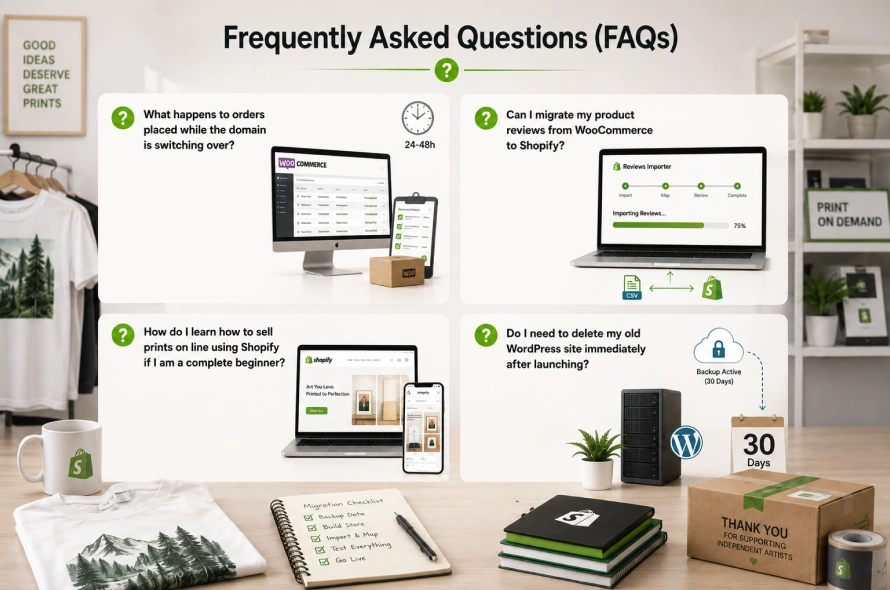
What happens to orders placed while the domain is switching over?
During the 24-to-48-hour window when your domain is moving across global servers, a few late orders might still land on your old WordPress dashboard. To handle this “Delta Window,” keep your old WooCommerce hosting active for a few days, monitor it closely, and manually copy those late transactions over to Shopify so no customer is left waiting.
Can I migrate my product reviews from WooCommerce to Shopify?
Yes, but they do not move automatically with your product CSV file. You must use a dedicated review migration app from the Shopify App Store (such as Product Reviews Importer or Judge.me). Export your reviews as a separate CSV file from WordPress, map the review text to your new Shopify product IDs, and upload them to keep your social proof intact.
How do I learn how to sell prints on line using Shopify if I am a complete beginner?
The easiest way is to focus on a clean layout, clear product descriptions, and automated supplier workflows. Shopify simplifies the entire process by offering pre-built templates specifically optimized for visual creators, allowing you to focus on marketing your art rather than managing complex web servers.
Do I need to delete my old WordPress site immediately after launching?
No, do not delete it right away. Keep your old WordPress site backed up and your hosting active in a private, hidden state for at least 30 days. This gives you a safe testing window to cross-reference past accounting records, verify old order history data, and double-check any historical customer service details if unexpected questions arise.